

Written by
Jude Sarkar
How to Know if Your Printer Issues Are Software or Hardware Related
You hit Print and nothing happens. The printer may blink, make a sound, sit silently, reject the job, or stop halfway through.
Before replacing the printer or changing random settings, first determine whether you're dealing with a software problem, a hardware problem, or a network issue between the two.
Knowing the difference can save time, prevent unnecessary repairs, and help you decide whether the issue can be handled remotely or requires physical service.
Common Printer Problems: Where Do They Come From?
Software-Related Printer Issues
Software problems usually involve the computer, printer driver, operating system, print spooler, network communication, or printer configuration.
- Corrupted or outdated printer drivers
- Printer marked offline
- Stuck print queue
- Print spooler errors
- Wrong default printer selected
- Wi-Fi or network configuration issues
Hardware-Related Printer Issues
Hardware problems involve the physical printer or its consumable and mechanical components.
- Paper jams or feeding problems
- Ink or toner issues
- Damaged rollers
- Printhead problems
- Broken sensors
- Grinding or unusual mechanical sounds
Software vs Hardware Printer Issues: How to Tell the Difference
You don't need to disassemble the printer to narrow down the problem. Start with a few simple tests.
Check the Error Message
Communication, driver, spooler, or printer-offline messages often point toward software. Paper, cartridge, cover, sensor, and jam messages usually point toward the printer itself.
Print a Test Page From the Printer
If the printer can produce its own internal test or configuration page without using your computer, much of the printer hardware is likely working.
Try Another Computer or Mobile Device
If another device prints successfully, focus your troubleshooting on the original computer, driver, app, or configuration.
Check Whether the Printer Can Operate Independently
If it cannot feed paper, run maintenance, print an internal test, or clear an error even without a computer connected, hardware deserves closer inspection.
What Printer Error Messages Usually Mean
Driver Not Found
Usually points to a missing, incompatible, damaged, or incorrectly installed printer driver.
Cannot Communicate With Printer
Often involves USB connectivity, Wi-Fi, network settings, firewall rules, or printer status.
Print Spooler Error
Usually points to Windows print queue or print service problems.
Paper Jam
Usually means paper, debris, rollers, sensors, or the paper path needs physical inspection.
Cartridge Not Recognized
May involve the cartridge, chip contacts, installation, compatibility, or printer firmware.
Repeating Blink Pattern
Many printers use LEDs to report physical faults. Check the manufacturer's meaning for your exact model.
Error Messages Aren't Always Perfect
Some problems overlap. For example, a cartridge message may be caused by a physical cartridge problem, incompatible firmware, or both. Treat the error as a diagnostic clue rather than absolute proof.
Run a Printer Diagnostic Test
One of the most useful troubleshooting tests is printing directly from the printer without relying on Windows, macOS, or the application you're trying to print from.
Printer Can Print Its Own Test Page
If the printer successfully prints an internal test, status, configuration, or nozzle-check page, the core printing mechanism is probably functional. Focus next on the computer, driver, spooler, network, or application.
Printer Cannot Print Its Own Test Page
If the printer cannot complete its built-in test because of feeding, cartridge, printhead, sensor, or mechanical errors, the problem is more likely within the printer itself.
If your printer passes the diagnostic but still will not print from your computer, MicroSec® can help troubleshoot printer drivers, Windows print services, network communication, and software configuration remotely.
Printer Troubleshooting Steps: Software Edition
Check the Printer Connection
First confirm that the printer is connected to the correct USB port, Wi-Fi network, Ethernet connection, or printer server.
- Reconnect the USB cable
- Check Wi-Fi status on the printer
- Verify the computer is on the same network
- Restart the printer if communication has stalled
Update or Reinstall the Printer Driver
Damaged, outdated, or incorrect drivers can cause print failures, missing printer features, or communication problems.
- Find the exact printer manufacturer and model number.
- Visit the manufacturer's official support page.
- Select the correct operating system.
- Download the recommended driver or software package.
- Reinstall and test printing again.
Avoid Random Driver Download Sites
Printer drivers should normally come from Windows Update or the printer manufacturer's official support site.
Restart the Windows Print Spooler
The Windows Print Spooler manages queued print jobs. If it becomes stuck, documents may remain in the queue without reaching the printer.
- Press Windows + R.
- Type services.msc.
- Find Print Spooler.
- Right-click it and choose Restart.
- Test the printer again.
Check the Selected and Default Printer
Make sure the document is being sent to the actual printer rather than another installed printer, an old printer entry, Microsoft Print to PDF, or a disconnected device.
Printer Troubleshooting Steps: Hardware Edition
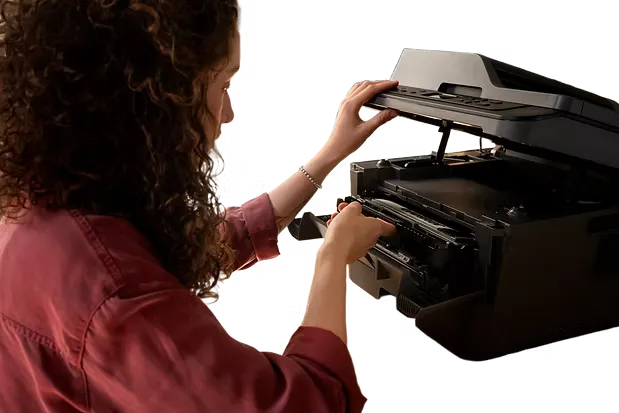
Check for Paper Jams and Misfeeds
Open accessible trays, doors, duplex areas, and paper paths according to the manufacturer's instructions.
- Remove visibly jammed paper carefully
- Look for small torn pieces
- Check whether guides are too tight
- Confirm paper is loaded correctly
Check Ink or Toner
Low, empty, incompatible, incorrectly seated, or defective cartridges can prevent normal printing.
Printer Behavior Varies by Model
Some printers may restrict printing when a cartridge is empty or unrecognized. The exact behavior depends on the manufacturer, model, firmware, and cartridge configuration.
Run Printhead Cleaning or Alignment
If output is streaky, faded, misaligned, or missing colors, use the printer's built-in maintenance functions before attempting physical disassembly.
- Run nozzle check if supported
- Run printhead cleaning
- Run print alignment
- Print another diagnostic page
Listen for Rollers, Sensors, and Mechanical Problems
Repeated misfeeds, grinding noises, paper stopping in the same location, or errors that remain after clearing the paper path may indicate worn rollers, sensors, gears, or other mechanical components.
Stop If You See Physical Damage
Exposed wiring, burning smells, smoke, damaged power connectors, or severe grinding are reasons to stop using the printer and arrange physical service rather than continuing to troubleshoot remotely.
When to Call in Professional Printer Support
Sometimes the most difficult part isn't fixing the printer — it's determining whether the issue lives in Windows, the driver, Wi-Fi, print services, or the physical printer.
MicroSec® provides remote printer troubleshooting for many software-related problems, including driver installation, printer setup, Windows print spooler errors, wireless communication, printer status issues, and software configuration.
Physical defects such as broken rollers, damaged printheads, cracked components, or electrical faults may require local hands-on repair or printer replacement.
What Happens If You Ignore Printer Problems?
| Problem | Possible Impact |
|---|---|
| Printer repeatedly fails during jobs | Lost productivity and repeated reprinting |
| Driver conflicts after OS updates | Printing failures or application instability |
| Recurring paper jams | Possible wear to rollers or paper-path components |
| Ignored mechanical faults | Greater chance of further printer damage |
| Unresolved network issues | Intermittent printing across computers and devices |
Diagnose Before Replacing
A printer that appears broken may only have a driver, network, queue, or operating-system problem. Confirm the root cause before buying a new printer or paying for physical repair.
Final Takeaway: Diagnose Smart, Fix Faster
The simplest way to distinguish software from hardware is to isolate the problem.
- Check the printer's own error indicators.
- Print an internal test page.
- Test from another computer or phone.
- Confirm USB, Wi-Fi, or network communication.
- Reinstall the correct printer driver.
- Inspect the physical printer only when the evidence points there.
If the printer itself works but your computer still cannot print, software and communication troubleshooting can often be completed remotely.
Still Not Sure Whether Your Printer Problem Is Hardware or Software?
Avoid spending hours reinstalling software when the printer has a physical fault — or replacing a printer when the real problem is only a Windows driver or network setting.
MicroSec® can help diagnose printer drivers, print spooler errors, wireless connectivity, printer setup, and other software-related printer problems remotely.
Written by Jude Sarkar
Founder & Cybersecurity Consultant at MicroSec®
Jude Sarkar is the founder of MicroSec®, a BBB Accredited and fully insured U.S.-based remote IT support and cybersecurity company. With over a decade of hands-on experience in malware removal, virus cleanup, and scam prevention, Jude helps homeowners, seniors, and small businesses stay safe online through trusted, human-first remote support.
For more information, please visit About MicroSec®.