

Written by
Jude Sarkar
Technology Support Strategies That Work Best for Senior Citizens
Navigating technology can sometimes feel like learning a new language. Smartphones, tablets, passwords, apps, software updates, and security warnings can quickly become overwhelming.
The right approach isn't simply fixing technology for an older adult. It's helping them understand it, use it safely, and become more confident each time they pick up their device.
Understanding the Senior Tech Landscape
Older adults increasingly rely on technology for communication, entertainment, shopping, banking, healthcare services, and staying connected with family.
While many seniors are comfortable with technology, others run into challenges because modern devices and software change frequently.
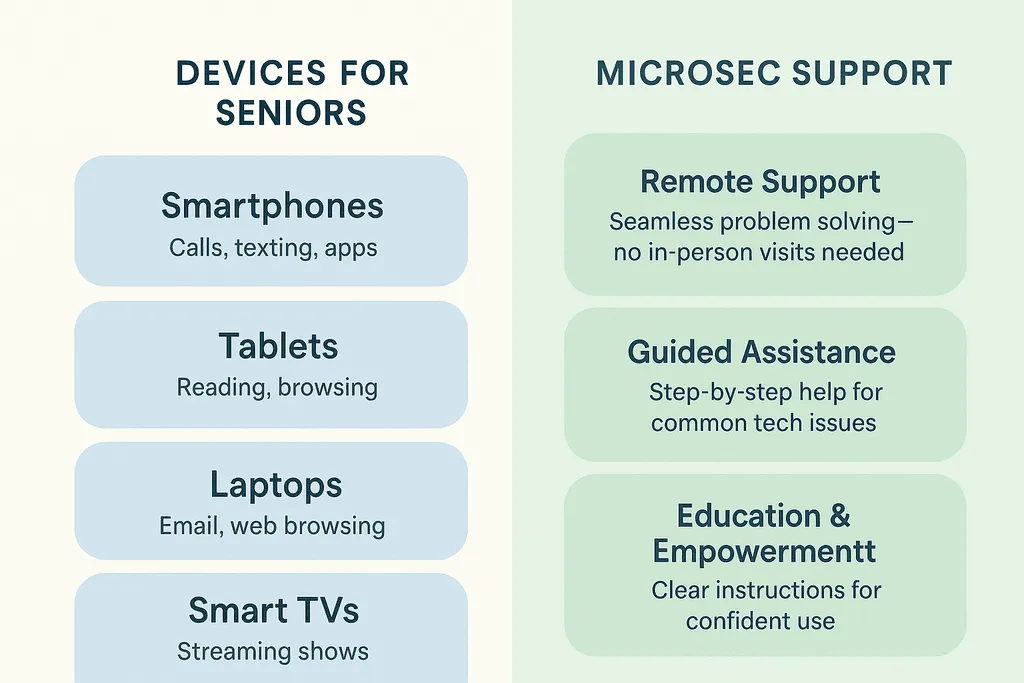
Common Devices Seniors Use
Smartphones
Calls, texting, apps, photos, maps, and video communication.
Tablets
Reading, browsing, video calls, games, and entertainment.
Laptops
Email, web browsing, documents, shopping, and online accounts.
Smart TVs
Streaming services, entertainment apps, and online content.
Where Technology Becomes Frustrating
These challenges don't mean technology is unsuitable for older adults. They simply mean that support should be designed around accessibility, patience, repetition, and clear explanations.
Confidence Is Part of the Solution
Good support isn't only about resolving an error. Helping someone understand why the problem happened and what to do next time can reduce frustration and make them more independent.
MicroSec provides senior-friendly tech support for many common computer and technology problems.
Effective Tech Support Strategies for Seniors
The most effective senior tech support combines accessibility, education, security, and patience. Instead of expecting the user to adapt to complicated technology, adjust the technology and support process around the person.
Simplify the Technology Interface
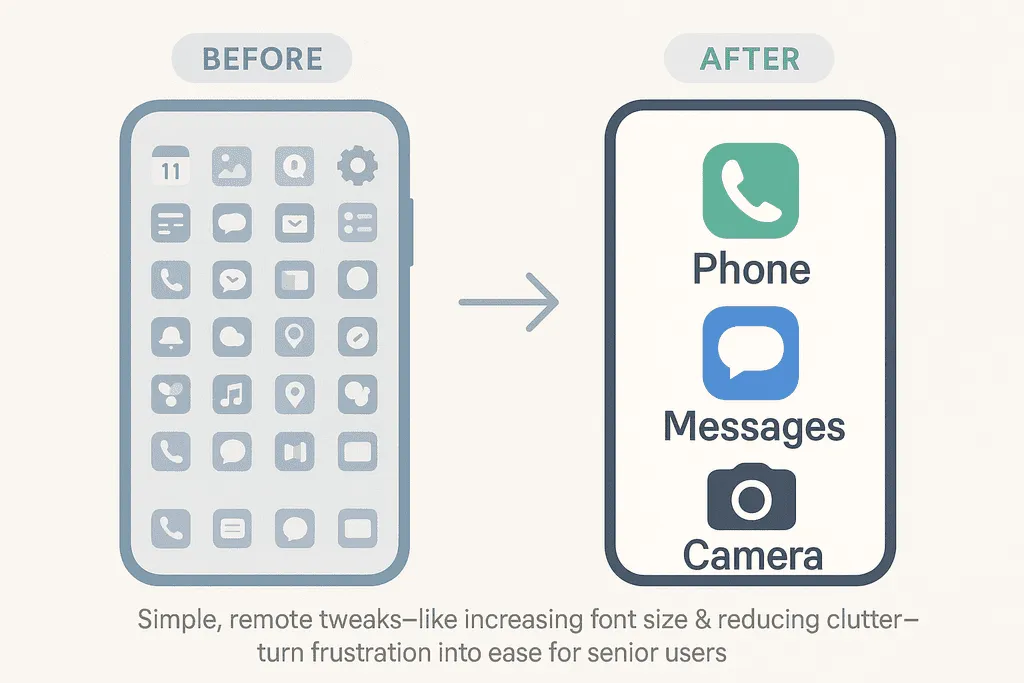
One of the easiest ways to reduce frustration is to make the device itself easier to see and navigate.
- Increase font and display sizes.
- Increase screen contrast where appropriate.
- Remove unnecessary shortcuts from the home screen.
- Place frequently used apps in easy-to-find locations.
- Configure voice commands when they're useful.
Make frequently used applications easier to locate and select.
Can reduce typing and make common actions easier to perform.
Can improve readability for users who find low-contrast interfaces difficult to see.
Familiar comparisons can also help explain unfamiliar concepts. For example, email folders can be compared with folders in a filing cabinet, while two-factor authentication can be described as adding another lock to the front door.
Provide Patient, Step-by-Step Guidance
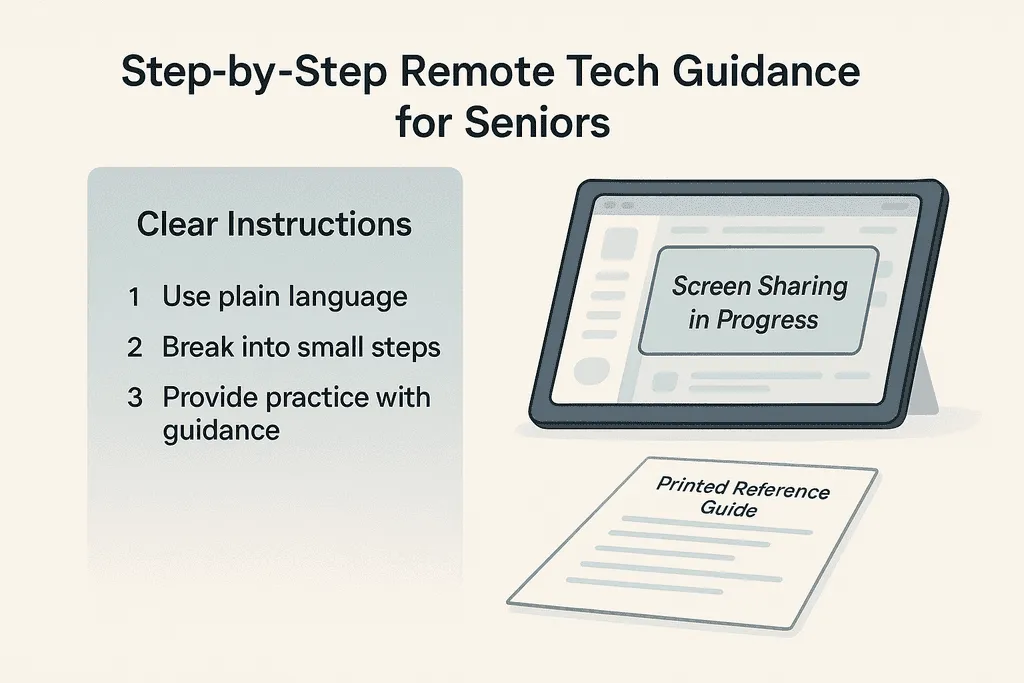
Trying to explain five different actions at once can make a simple task feel complicated. Breaking the process into small steps makes learning easier.
- Use plain language. Avoid unnecessary technical jargon and explain unfamiliar terms.
- Focus on one action at a time. Let the user complete each step before moving forward.
- Encourage hands-on practice. Whenever possible, let the senior perform the task rather than simply watching someone else do it.
- Repeat important steps. Repetition can make new processes easier to remember.
- Create simple reference instructions. Short written instructions can help the user complete common tasks independently later.
Remote screen-sharing can also make support easier because the technician can see the same screen as the user and guide them through the process in real time.
Make Online Safety Part of Every Support Plan
Technology support for seniors should include cybersecurity education because scams frequently arrive through email, text messages, websites, phone calls, and fake technical-support alerts.
- Teach how to recognize suspicious emails and text messages.
- Keep operating systems and applications updated.
- Install reputable antivirus and security software where appropriate.
- Use strong, unique passwords or a trusted password manager.
- Enable two-factor authentication on important accounts.
- Teach users not to give remote access to unexpected callers.
A Simple Rule for Unexpected Tech Support Calls
If someone unexpectedly calls claiming the computer is infected, don't install software, provide passwords, or give them remote access. End the call and contact a trusted support provider using contact information you already know is legitimate.
Security education should be ongoing. Scam techniques evolve, so occasional reminders about new threats can help older adults stay safer online.
How Tailored Tech Support Can Improve Daily Life
Technology becomes far more valuable when users feel comfortable with it. Patient, personalized assistance can help older adults use digital tools with greater independence.
The goal isn't to turn every senior into a technology expert. Instead, support should help them confidently complete the digital tasks that matter in their everyday lives.

Social Connection
Video calls, messaging, email, and social platforms can make staying connected with friends and family easier.
Online Services
Greater digital confidence can make websites, portals, appointments, and other online services easier to navigate.
Entertainment
Streaming, reading apps, games, photos, and other digital services provide more ways to enjoy free time.
Independence
Learning repeatable technology skills can reduce the need to ask someone for help with every small task.
The Goal Is Independence, Not Dependence on Support
The best support solves today's problem while giving the user enough understanding to handle similar situations more confidently in the future.
A Simple Senior Support Framework
Whether support comes from a family member, caregiver, friend, or professional technician, a consistent approach can make technology assistance more effective.
| Step | What to Do | Why It Helps |
|---|---|---|
| 1. Listen | Ask what the user was trying to accomplish. | Focuses support on the actual goal. |
| 2. Simplify | Remove unnecessary steps and distractions. | Makes the task easier to repeat. |
| 3. Demonstrate | Show one clear step at a time. | Reduces information overload. |
| 4. Practice | Let the senior perform the task. | Builds familiarity and confidence. |
| 5. Document | Create a short reference guide if needed. | Provides help when support isn't available. |
| 6. Secure | Check updates, passwords, and security settings. | Reduces avoidable cybersecurity risks. |
Helping Seniors Build Long-Term Digital Confidence
Supporting seniors with technology isn't just about fixing devices. It's about making technology less intimidating and helping older adults stay connected, informed, entertained, and independent.
Patience, clear communication, accessible device settings, hands-on practice, and cybersecurity education are some of the most effective strategies.
Every senior is different. Some may want detailed explanations, while others simply need someone to walk them through a problem once or twice. The support approach should adapt to the person rather than forcing everyone through the same process.
For additional guidance, see our article on helping seniors with computer and device issues remotely .
Seniors dealing with unwanted advertisements and browser interruptions can also read our guide on stopping annoying pop-ups and ads .
Make Technology Easier, Safer, and Less Stressful
MicroSec® provides senior-friendly remote technology support for computers, software, email, printers, internet connectivity, security concerns, unwanted pop-ups, and other common technology problems.
Our goal is to resolve the problem while explaining the solution in clear, understandable steps.
Common Questions About Senior Tech Support
Here are answers to some frequently asked questions about technology support for older adults:
Key security steps include: Using strong, unique passwords (a password manager helps) Enabling two-factor authentication where possible Installing and updating antivirus software Learning to spot phishing emails and online scams
Written by Jude Sarkar
Founder & Cybersecurity Consultant at MicroSec®
Jude Sarkar is the founder of MicroSec®, a BBB Accredited and fully insured U.S.-based remote IT support and cybersecurity company. With over a decade of hands-on experience in malware removal, virus cleanup, and scam prevention, Jude helps homeowners, seniors, and small businesses stay safe online through trusted, human-first remote support.
For more information, please visit About MicroSec®.