

Written by
Jude Sarkar
Bluetooth Disappeared from Device Manager? Here’s How to Fix It
Bluetooth disappeared from Device Manager can feel confusing, especially when your wireless mouse, keyboard, headphones, or phone suddenly stops connecting.
One day, Bluetooth works normally. The next day, the Bluetooth icon is gone, the Bluetooth toggle is missing, and Device Manager does not show your Bluetooth adapter like it used to.
If you are searching for “Bluetooth disappeared from Device Manager” or “Bluetooth missing from Device Manager,” this guide will walk you through the most common causes and the safest troubleshooting steps to try first.
At MicroSec®, we help users with Windows Bluetooth issues, driver problems, device connection errors, and computer troubleshooting remotely. This guide is written in simple language so you can understand what may be happening before you ask for help.
If your Bluetooth is missing, not connecting, or keeps failing, you can also read our full guide on Bluetooth not working on PC for broader troubleshooting steps.
What Does It Mean When Bluetooth Disappears from Device Manager?
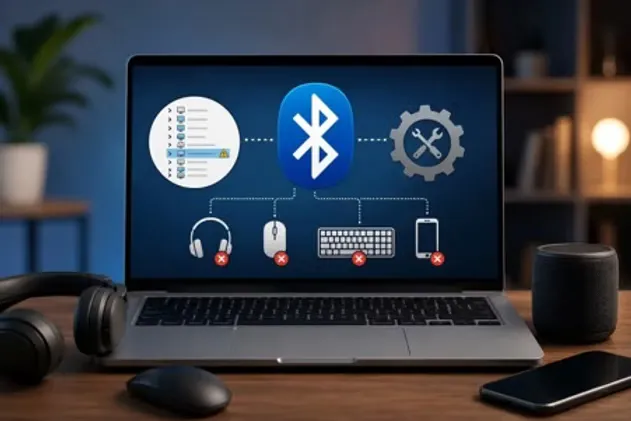
When Bluetooth disappears from Device Manager, Windows may not be detecting the Bluetooth adapter properly.
This can happen because of:
- A corrupted Bluetooth driver.
- A Windows update conflict.
- A disabled Bluetooth adapter.
- A missing manufacturer driver.
- A power management issue.
- A BIOS or UEFI wireless setting.
- A hardware problem with the Bluetooth adapter.
This does not always mean your computer is broken.
In many cases, Bluetooth is missing because Windows cannot communicate with the Bluetooth driver correctly. Microsoft also recommends checking drivers, Windows updates, and Bluetooth troubleshooting tools when Bluetooth disappears or stops working in Windows.
Quick Check: Is Bluetooth Really Missing?
Open Device Manager
Press:
Windows + X → Device Manager
Then look for:
Bluetooth
If you see Bluetooth, click the arrow beside it and look for your adapter. It may include names like:
- Intel Wireless Bluetooth.
- Realtek Bluetooth Adapter.
- Qualcomm Bluetooth.
- Broadcom Bluetooth.
- Generic Bluetooth Radio.
Microsoft notes that Bluetooth adapters in Device Manager may also include the word “radio.”
Show Hidden Devices
In Device Manager:
View → Show hidden devices
Now check again for Bluetooth.
If Bluetooth appears greyed out, Windows may remember the device, but it may not be actively detecting it.
If Bluetooth still does not appear at all, continue with the steps below.
Why Is Bluetooth Missing from Device Manager?
Here are the most common reasons we see when Bluetooth is missing from Device Manager on Windows PCs.
A Windows Update Changed or Broke the Bluetooth Driver
Sometimes, after a Windows update, Bluetooth may stop appearing because the existing Bluetooth driver is no longer working correctly.
This is common when:
- Bluetooth worked yesterday.
- Windows was updated recently.
- The Bluetooth toggle disappeared.
- Device Manager no longer shows Bluetooth.
- Your wireless mouse or headphones stopped connecting.
In this case, updating or reinstalling the Bluetooth driver is usually the best first step.
Bluetooth issues after Windows updates are often part of larger Windows system problems. If multiple features stopped working at the same time, our Computer Repair Service can diagnose the underlying Windows issue and help restore normal system functionality.
The Bluetooth Driver Is Missing or Corrupted
Bluetooth needs a driver to work properly.
If the driver is missing, outdated, or corrupted, Windows may not show Bluetooth in Settings or Device Manager.
You may notice:
- No Bluetooth toggle in Settings.
- No Bluetooth section in Device Manager.
- Unknown device listed under “Other devices”.
- Wireless devices are no longer pairing.
- Bluetooth headphones, mouse, or keyboard not detected.
Microsoft recommends using Device Manager and Windows Update to update Bluetooth drivers, and also checking the PC manufacturer’s website if Windows does not find the newest driver.
Bluetooth Hardware Is Disabled
Some laptops allow Bluetooth or wireless adapters to be disabled through:
- BIOS or UEFI settings.
- Keyboard shortcuts.
- Physical wireless switches.
- Manufacturer control software.
This is more common on certain business laptops or older systems.
If Bluetooth disappeared after a BIOS update, battery reset, repair, or major Windows update, the wireless adapter setting may need to be checked.
Power Management Turned Off the Bluetooth Adapter
Windows may turn off certain hardware to save power.
For laptops, this can sometimes cause Bluetooth to disconnect, disappear, or stop responding.
This is especially common when:
- Bluetooth disappears after sleep mode.
- Bluetooth devices disconnect randomly.
- Bluetooth works only after restarting.
- Bluetooth comes and goes.
Microsoft’s troubleshooting guidance also includes disabling power-saving behavior for Bluetooth adapters when Bluetooth keeps disconnecting.
How to Fix Bluetooth Disappeared from Device Manager
Follow these steps in order. Start with the safest and simplest fixes first.
Restart Your PC Completely
This sounds basic, but it can fix temporary driver detection issues.
Do this first:
- Save your work.
- Click Start.
- Click Power.
- Choose Restart.
Avoid shutting the lid or using Sleep mode. A full restart reloads Windows services and drivers.
After restarting, open Device Manager again and check if Bluetooth returns.
Check Bluetooth Settings in Windows
Go to:
Settings → Bluetooth & devices
Look for the Bluetooth toggle.
If the Bluetooth toggle is missing, Windows may not be detecting the Bluetooth adapter or the driver may not be installed.
If the toggle is there, turn Bluetooth off and back on. If the toggle is not there, continue to the next fix.
Run the Windows Bluetooth Troubleshooter
For Windows 10 and Windows 11, Microsoft recommends using the automated Bluetooth troubleshooter through the Get Help app.
Try this:
- Click Start.
- Search for Get Help.
- Open the app.
- Search for Bluetooth troubleshooter.
- Follow the on-screen steps.
The troubleshooter may check Bluetooth services, settings, drivers, and configuration problems.
Check Device Manager for Hidden Bluetooth Devices
Open Device Manager using Windows + X → Device Manager.
Then select:
View → Show hidden devices
Now look for:
- Bluetooth.
- Network adapters.
- Other devices.
- Unknown devices.
If you find a greyed-out Bluetooth adapter:
- Right-click it.
- Select Uninstall device.
- Restart your PC.
Do not delete random devices if you are unsure what they are.
Update the Bluetooth Driver
- Open Device Manager.
- Expand Bluetooth.
- Right-click your Bluetooth adapter.
- Select Update driver.
- Choose Search automatically for drivers.
- Restart your PC after the update.
If Windows says the best driver is already installed, check your PC brand’s official support website.
Examples:
- Dell Support.
- HP Support.
- Lenovo Support.
- ASUS Support.
- Acer Support.
- Microsoft Surface Support.
Download drivers only from the official manufacturer's website.
Install the Driver from Your PC Manufacturer
If Bluetooth is completely missing from Device Manager, Windows may not have the correct driver installed.
To find your computer model:
- Press Windows + R.
- Type: msinfo32
- Press Enter.
- Look for System Model.
Visit your manufacturer’s official support website and download the latest Bluetooth or wireless driver for your model.
After installing:
- Restart your PC.
- Open Device Manager.
- Check if Bluetooth appears again.
Check Windows Update
Go to:
Settings → Windows Update → Check for updates
Install available updates, including optional driver updates if Windows offers them.
After updates finish, restart your PC.
Restart Bluetooth Support Service
- Press Windows + R.
- Type: services.msc
- Press Enter.
- Find Bluetooth Support Service.
- Right-click it.
- Select Restart.
- Set Startup type to Automatic if needed.
Restart your PC and check Bluetooth again.
Disable Bluetooth Power Management
- Open Device Manager.
- Expand Bluetooth.
- Right-click your Bluetooth adapter.
- Select Properties.
- Go to the Power Management tab.
- Uncheck “Allow the computer to turn off this device to save power.”
- Click OK.
- Restart your PC.
Check BIOS or UEFI Wireless Settings
This matters if:
- Bluetooth disappeared after a BIOS update.
- Wi-Fi works, but Bluetooth does not.
- Device Manager does not show Bluetooth at all.
- The laptop has business or security management settings.
Common BIOS keys include:
- F2.
- F10.
- F12.
- Delete.
- Esc.
Look for sections like:
- Wireless.
- Integrated devices.
- Onboard devices.
- Bluetooth.
- WLAN/Bluetooth.
Be careful in BIOS settings. Do not change settings you do not understand.
Test With a USB Bluetooth Adapter
If Bluetooth still does not appear after drivers, updates, and troubleshooting, the built-in Bluetooth adapter may have a hardware issue.
A simple way to test this is using a USB Bluetooth adapter.
If the USB Bluetooth adapter works, your built-in Bluetooth hardware or driver may be the problem.
If Bluetooth still isn't working after trying these steps, our professional computer repair services can remotely identify driver conflicts, Windows issues, and other software problems.
What Not to Do When Bluetooth Is Missing
- Do not download drivers from random websites.
- Do not install multiple driver updater apps.
- Do not delete unknown devices without understanding them.
- Do not change BIOS settings randomly.
- Do not assume the computer is broken immediately.
- Do not keep restarting without checking drivers.
Most Bluetooth problems are fixable, but the wrong driver or wrong setting can make troubleshooting harder.
Windows 11 and Windows 10 Guidance
Bluetooth Missing from Device Manager on Windows 11
The most likely causes are:
- Missing Bluetooth driver.
- Windows update conflict.
- Disabled adapter.
- Manufacturer driver issue.
- Power management problem.
Start with:
- Windows Bluetooth troubleshooter.
- Device Manager hidden devices.
- Windows Update.
- The manufacturer's Bluetooth driver.
- Bluetooth Support Service.
- Power Management settings.
Bluetooth Missing from Device Manager on Windows 10
For Windows 10, the same basic logic applies.
Check:
- Bluetooth toggle in Settings.
- Device Manager.
- Hidden devices.
- Windows Update.
- Manufacturer driver.
- Bluetooth Support Service.
Older Windows 10 computers may also have older Bluetooth hardware, so a USB Bluetooth adapter may be a practical option if the built-in adapter no longer works reliably.
When Should You Get Help?
You should consider getting help if:
- Bluetooth disappeared after a Windows update.
- Device Manager does not show Bluetooth at all.
- Your Bluetooth driver keeps failing.
- You are not comfortable uninstalling drivers.
- Your wireless mouse or keyboard is your main input device.
- You use the computer for work and cannot risk making the issue worse.
At MicroSec®, we help users troubleshoot Bluetooth, Wi-Fi, printer, email, Windows, and device connection issues remotely.
You can stay at home, watch what is happening on your screen, and ask questions during the session.
Bluetooth problems are often part of a larger Windows issue. If you're also experiencing slow performance, startup problems, Wi-Fi issues, or driver errors, visit our computer repair page to learn how we troubleshoot these problems remotely.
Need Help Fixing Missing Bluetooth?
If Bluetooth disappeared from Device Manager and you are not sure what to do next, MicroSec® can help.
We provide remote computer troubleshooting for users in Waterford, Albany, Troy, Clifton Park, Schenectady, and nationwide.
Our goal is simple: identify the cause, explain it clearly, and help you get your computer working again safely.
Schedule Remote Troubleshooting with MicroSec®Frequently Asked Questions
Clear answers to common questions — no technical jargon, no pressure.
Yes, if Windows still detects the Bluetooth adapter, you can update or reinstall the Bluetooth driver through Device Manager. If Device Manager does not show Bluetooth at all, download the correct driver from your PC manufacturer’s official website.
Written by Jude Sarkar
Founder & Cybersecurity Consultant at MicroSec®
Jude Sarkar is the founder of MicroSec®, a BBB Accredited and fully insured U.S.-based remote IT support and cybersecurity company. With over a decade of hands-on experience in malware removal, virus cleanup, and scam prevention, Jude helps homeowners, seniors, and small businesses stay safe online through trusted, human-first remote support.
For more information, please visit About MicroSec®.